
1. Purpose
To install and configure rclone on Windows and perform a complete S3 backup workflow:
- Configure CloudPe S3
- Upload files to S3
- Restore files from S3
- Automate backups using Task Scheduler
2. Prerequisites
- Windows Server (2016/2019/2022)
- PowerShell (Admin access)
- CloudPe S3 details:
- Access Key
- Secret Key
- Endpoint (e.g., https://s3.in-west2.purestore.io)
Note: Select the endpoint according to your region (e.g., https://s3.in-west2.purestore.io or https://s3.in-west3.purestore.io).
3. Install rclone
3.1 Download
Download from:
https://rclone.org/downloads/
3.2 Extract
Create folder:
C:\rclone\
Copy rclone.exe into this folder.
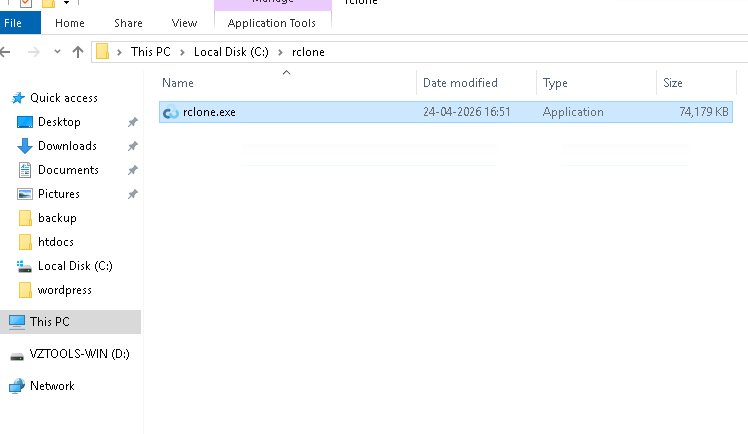
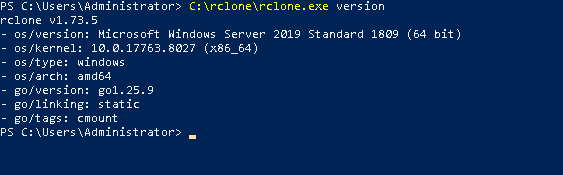
3.3 Verify
C:\rclone\rclone.exe version
4. Configure rclone
4.1 Config path
C:\Users\Administrator\AppData\Roaming\rclone\
4.2 Create file
rclone.conf
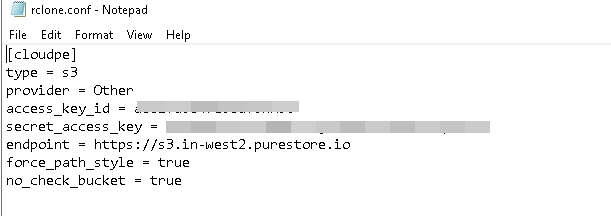
4.3 Add configuration
[cloudpe]
type = s3
provider = Other
access_key_id = YOUR_ACCESS_KEY
secret_access_key = YOUR_SECRET_KEY
endpoint = https://s3.in-west3.purestore.io
force_path_style = true
no_check_bucket = true
4.4 Verify connection
C:\rclone.exe lsd cloudpe:

5. Create Test Data
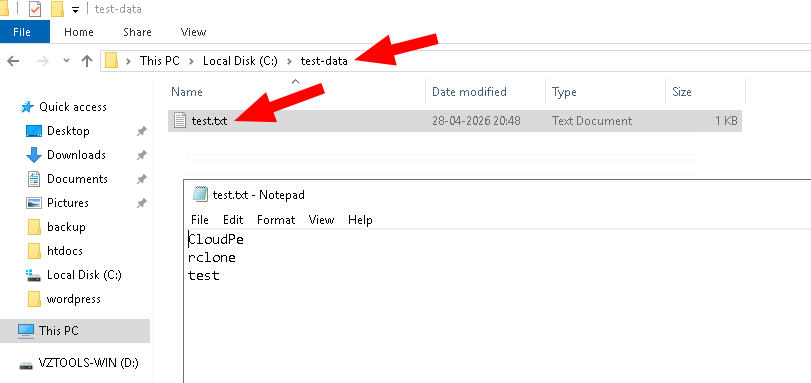
mkdir C:\test-data
echo CloudPe rclone test > C:\test-data\test.txt
6. Upload Data to S3
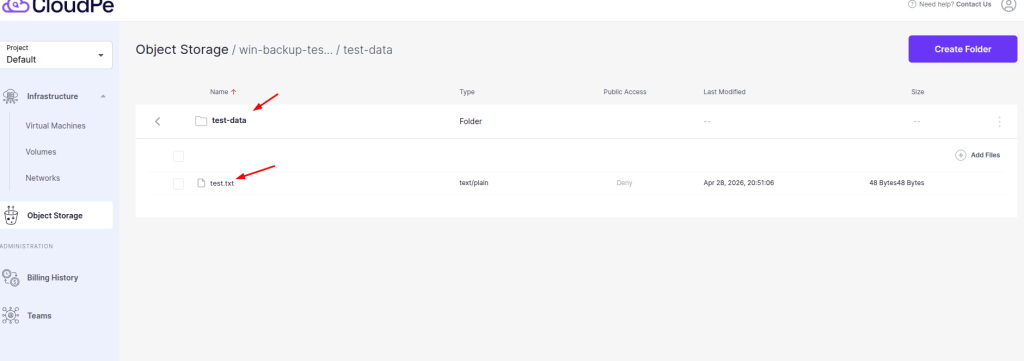
C:\rclone\rclone.exe copy C:\test-data cloudpe:win-backup-test/test-data
Note: win-backup-test is the bucket name used in this guide. Ensure that this bucket exists in CloudPe S3 before performing the steps.
7. Verify Upload
C:\rclone\rclone.exe ls cloudpe:win-backup-test/test-data

8. Restore (Download Test)
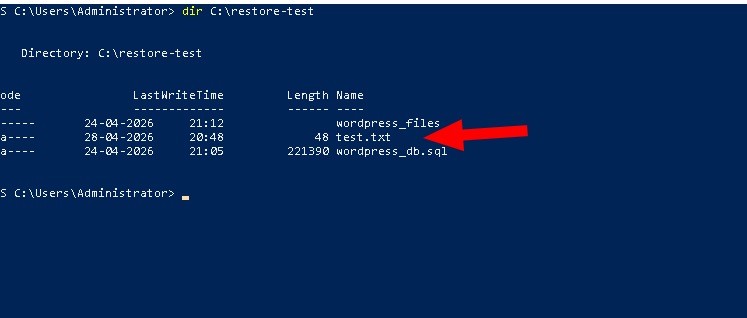
mkdir C:\restore-test
C:\rclone\rclone.exe copy cloudpe:win-backup-test/test-data C:\restore-test
dir C:\restore-test
9. Final Result
✔ S3 connection successful
✔ Bucket access verified
✔ File upload successful
✔ File restore successful
10. Automation of Backup (Task Scheduler)
10.1 Why Automation
- No manual backup required
- Runs automatically
- Prevents missing backups
10.2 Create Script
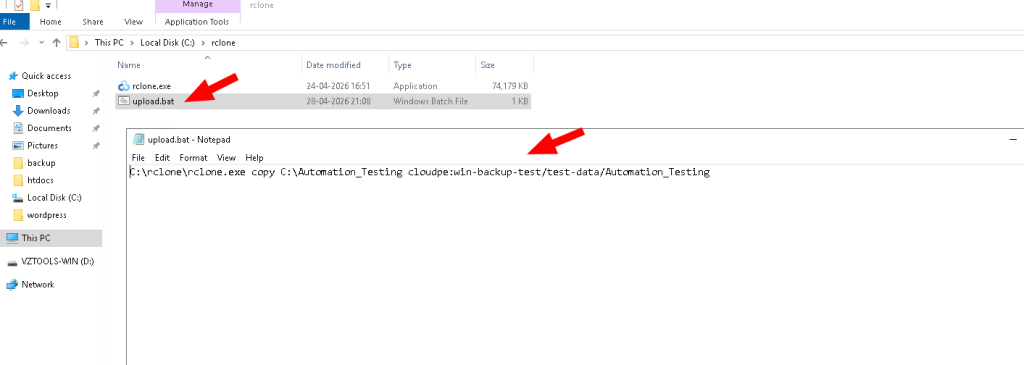
Create:
C:\rclone\upload.bat
Add:
C:\rclone\rclone.exe copy C:\Automation_Testing cloudpe:win-backup-test/test-data/Automation_Testing
10.3 Configure Task Scheduler
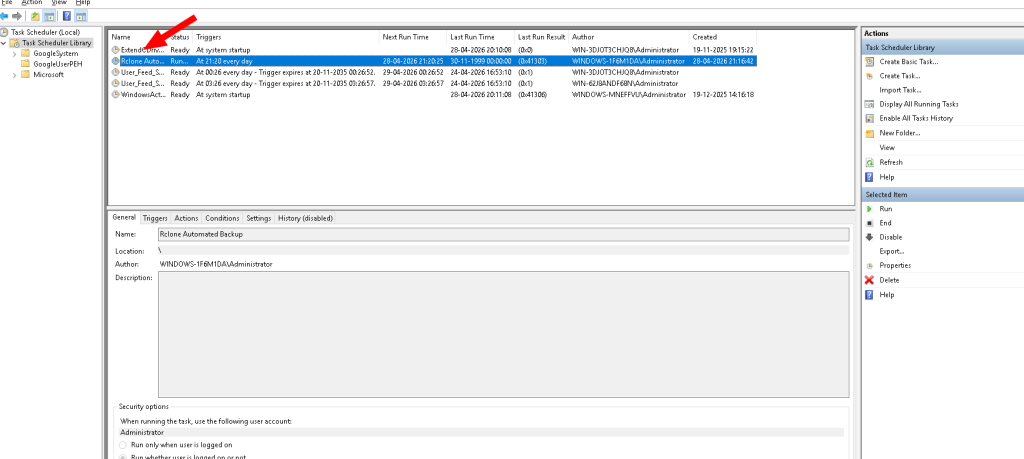
- Task Name: Rclone Automated Backup
- Trigger: Daily
- Action: Run upload.bat
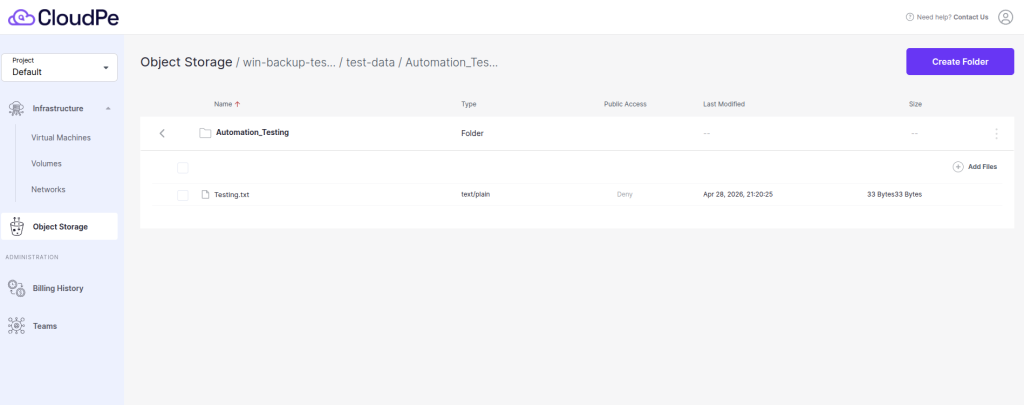
10.4 Verify Automation
C:\rclone\rclone.exe ls cloudpe:win-backup-test/test-data/Automation_Testing
11. Conclusion
✔ rclone configured successfully
✔ Backup and restore working
✔ Automation implemented successfully